User Guide
Follow these steps to start using Nomo with your Notion workspace
Special thanks to Sandy for providing this detailed tutorial. If you find this guide helpful, please let us know through the feedback feature. Your feedback helps us improve!
Install TestFlight
First, access the beta through our TestFlight link: testflight.apple.com/join/aYR7QsPB. Download and install TestFlight from the App Store.
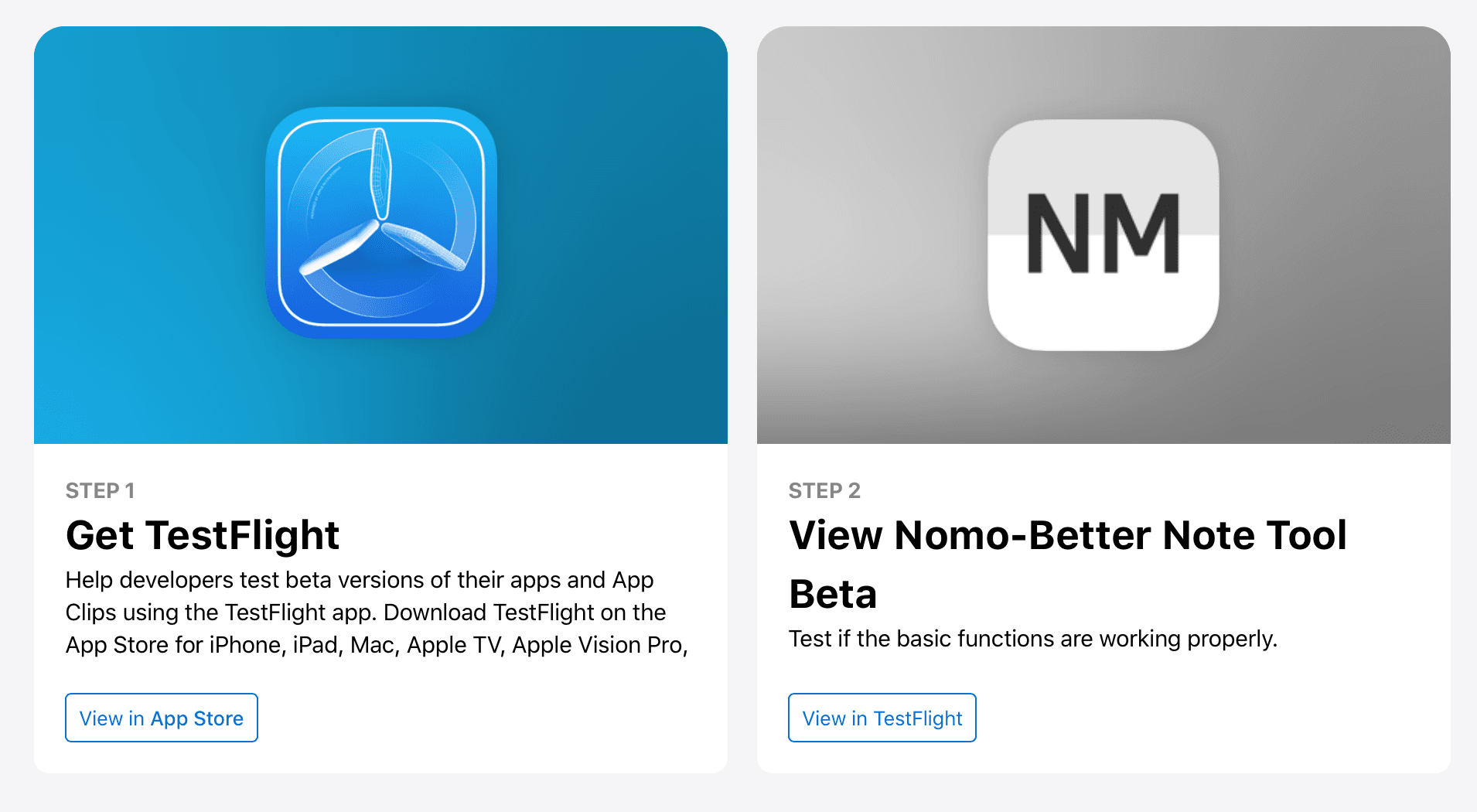
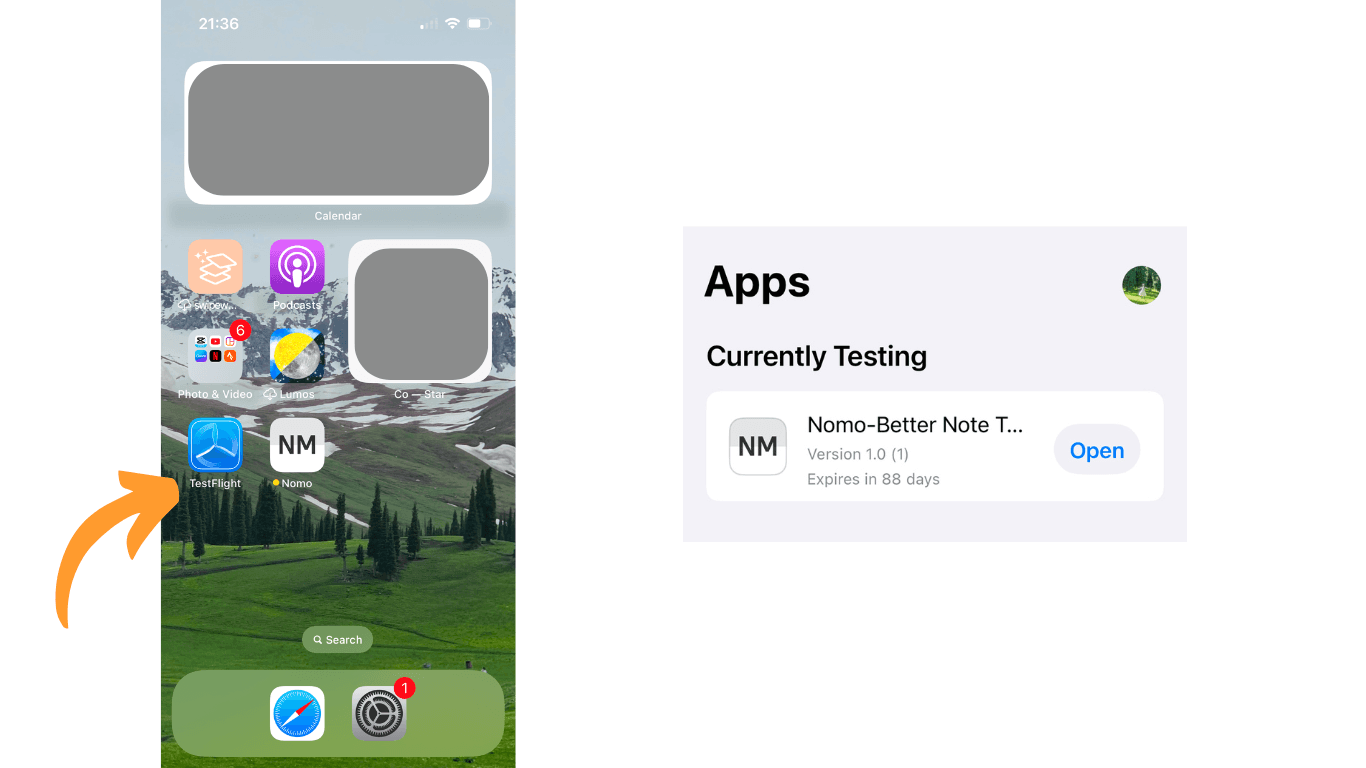
Install Nomo
After installing TestFlight, you'll see the Nomo app installation page. Click "Install" to download Nomo.
Get Notion Token
To connect with your Notion workspace, you'll need to provide a Notion token. Visit notion.so/profile/integrations to create a new integration. After creating it, you'll find your token in the integration details.
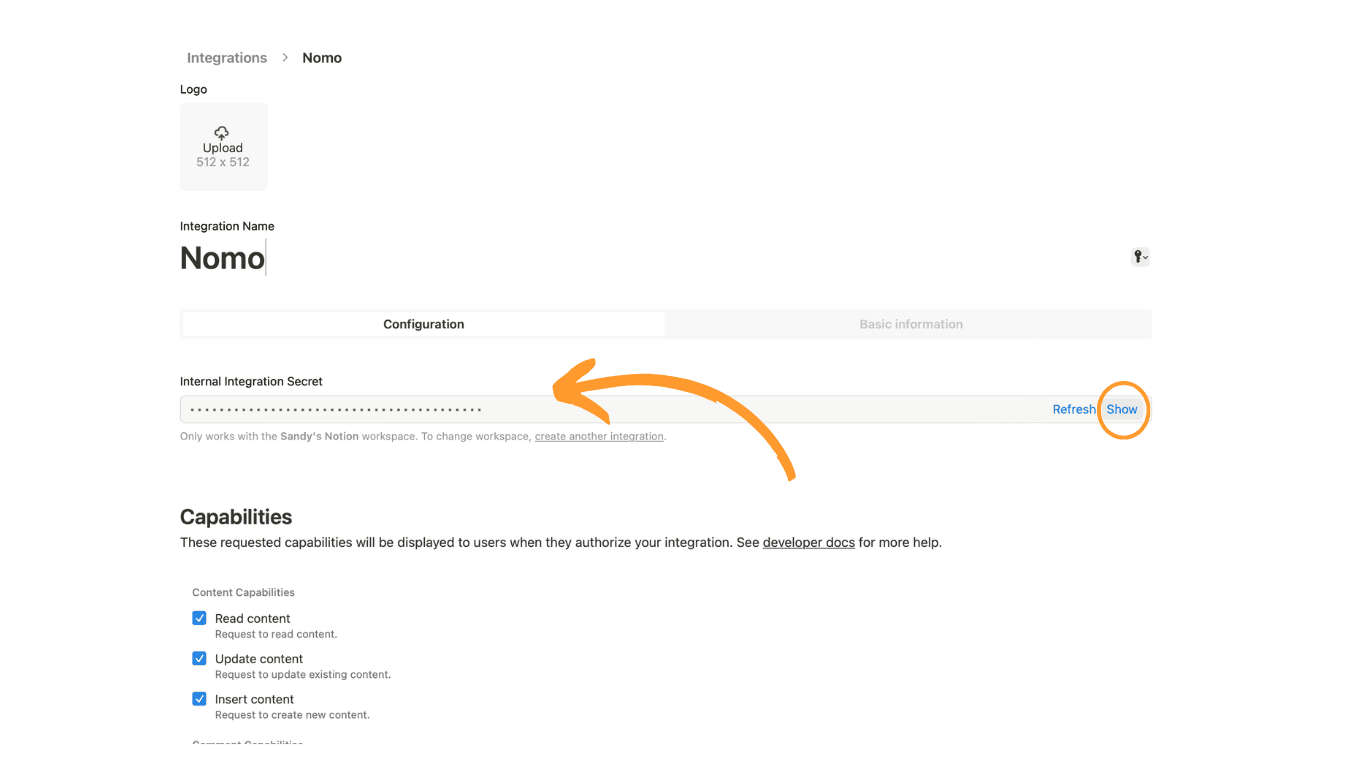
Connect Your Workspace
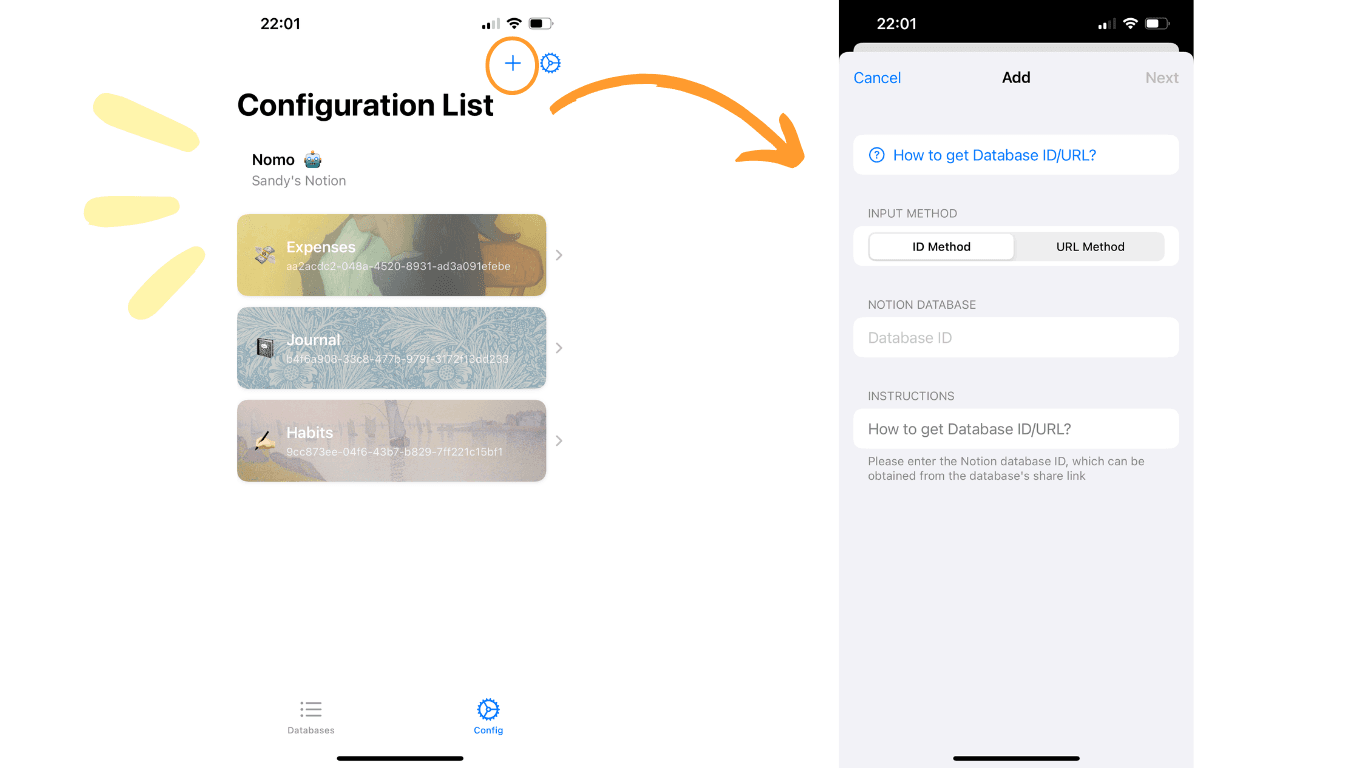
Copy your token into Nomo, and you'll see your Notion workspace. To add databases, use the "+" button in the top right corner.
Enable Database Access
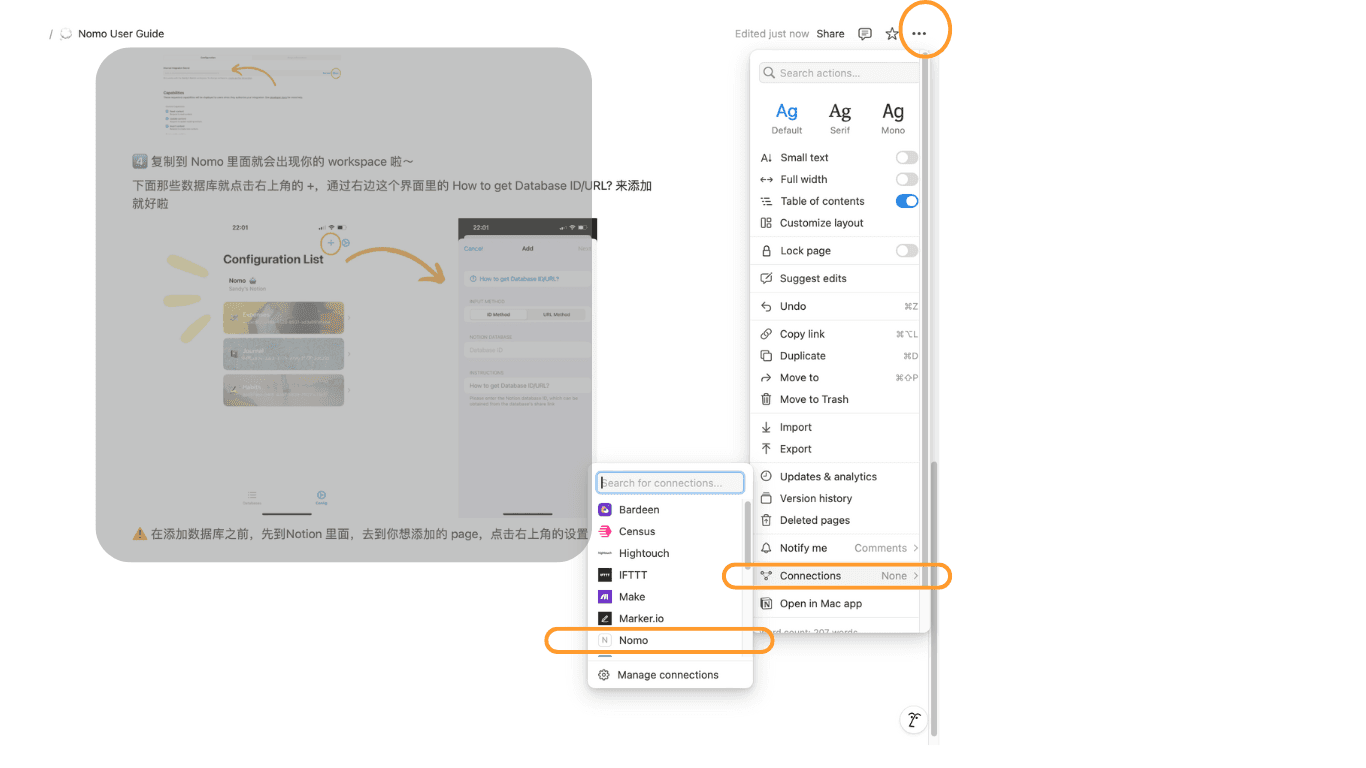
Before adding a database, go to your Notion page/database settings → Connections → add Nomo. Then share the link and paste it into Nomo.